---
title: How to download return or exchange report in EcoReturns
description: Steps to download return or exchange reports in EcoReturns
---
[Skip to content](https://help.saara.io/kb/how-to-download-return-or-exchange-report-in-ecoreturns#main-content)
[More support](https://help.saara.io/kb/kb-tickets/new?hsLang=en) [Customer portal](https://help.saara.io/tickets-view?hsLang=en)
[.png?width=250&height=100&name=Saara-Logo%20(250x100).png)](https://saara.io/?hsLang=en)
- Products
Show submenu for Products
- [EcoReturns](https://hs.saara.io/ecoreturns)
- [EcoShip](https://hs.saara.io/ecoship)
- [FlyOS](https://hs.saara.io/ai-agents-for-ecommerce)
- Resources
Show submenu for Resources
- [Knowledge base](https://saara.io/saara-knowledge-base?hsLang=en-us)
- [Support](https://saara.io/ecoreturns-support?hsLang=en-us)
Open main navigation
Close main navigation
- Products
Show submenu for Products
- [EcoReturns](https://hs.saara.io/ecoreturns)
- [EcoShip](https://hs.saara.io/ecoship)
- [FlyOS](https://hs.saara.io/ai-agents-for-ecommerce)
- Resources
Show submenu for Resources
- [Knowledge base](https://saara.io/saara-knowledge-base?hsLang=en-us)
- [Support](https://saara.io/ecoreturns-support?hsLang=en-us)
- [More support](https://help.saara.io/kb/kb-tickets/new)
- [Customer portal](https://help.saara.io/tickets-view)
- [Raise a Ticket](https://44348979.hs-sites.com/ecoreturns-support)
[Raise a Ticket](https://44348979.hs-sites.com/ecoreturns-support?hsLang=en)
How can we help you?
- There are no suggestions because the search field is empty.
1. [Saara-knowledge-base](https://help.saara.io/kb?hsLang=en)
2. [EcoReturns](https://help.saara.io/kb/ecoreturns?hsLang=en)
3. [FAQs](https://help.saara.io/kb/ecoreturns?hsLang=en#faqs)
# How to download return or exchange report in EcoReturns
## Steps that you can follow to download the reports.
### How to Download a Return Request Report
#### 1. Open the EcoReturns Dashboard
Log in to your EcoReturns admin dashboard.
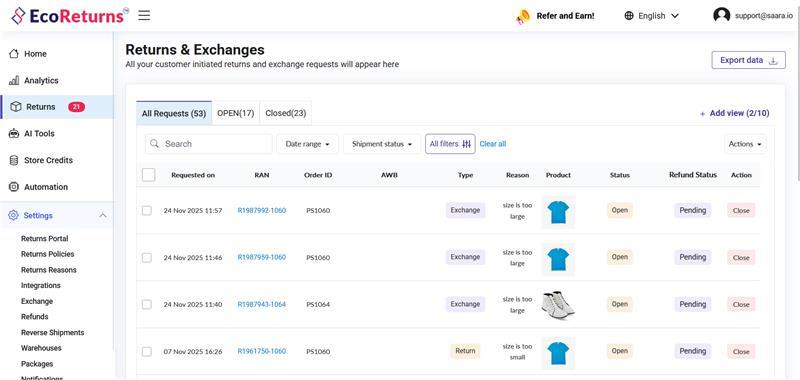
#### 2. Navigate to the "Returns" Tab
Open the left sidebar and select the **Returns** tab.
#### 3. Go to the "Returns & Exchanges" Dashboard
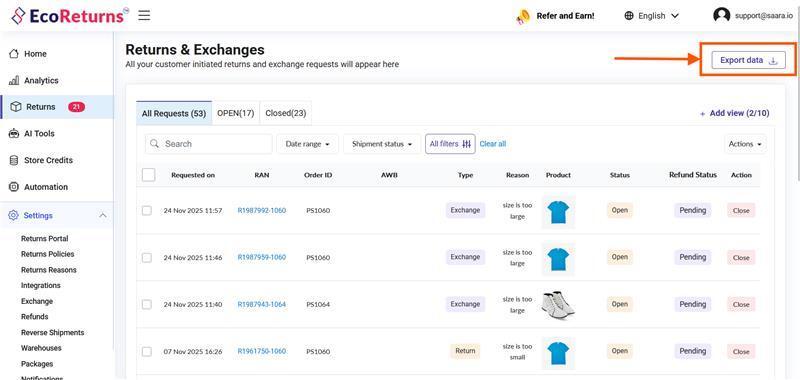
You will be redirected to the **Returns & Exchanges** page. At the top-right corner, locate the **Export data** button.
#### 4. Select Export Options
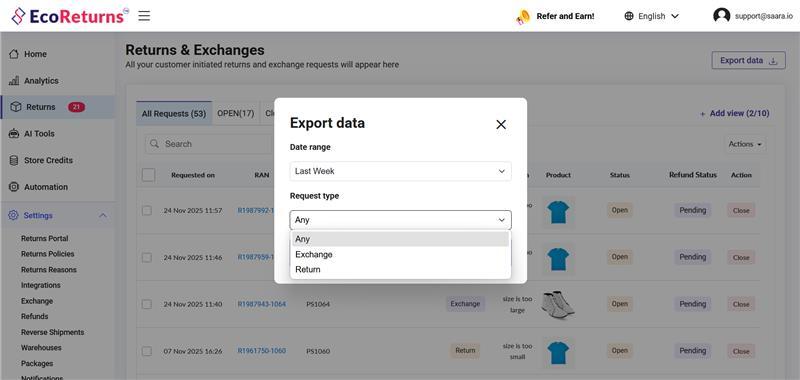
After clicking the button, a modal will appear asking you to choose:
- The date range for the report
- Whether to download **Returns**, **Exchanges**, or **Both**
#### 5. Download Processing
After you confirm and click **Download**, your request is added to the processing queue. You will receive the report via email within 5–10 minutes.
- [EcoReturns](https://help.saara.io/kb/ecoreturns?hsLang=en#main-content)
- [Getting Started](https://help.saara.io/kb/ecoreturns?hsLang=en#getting-started)
- [Settings](https://help.saara.io/kb/ecoreturns?hsLang=en#settings)
- [Integrations](https://help.saara.io/kb/ecoreturns?hsLang=en#integrations)
- [Automations](https://help.saara.io/kb/ecoreturns?hsLang=en#automations)
- [FAQs](https://help.saara.io/kb/ecoreturns?hsLang=en#faqs)
- [AI Agents](https://help.saara.io/kb/ai-agents?hsLang=en#main-content)
- [Getting Started](https://help.saara.io/kb/ai-agents?hsLang=en#getting-started)
- [FAQs](https://help.saara.io/kb/ai-agents?hsLang=en#faqs)
- [Integrations](https://help.saara.io/kb/ai-agents?hsLang=en#integrations)
- [EcoShip](https://help.saara.io/kb/ecoship?hsLang=en#main-content)
- [Getting Started](https://help.saara.io/kb/ecoship?hsLang=en#getting-started)
- [FAQs](https://help.saara.io/kb/faqs?hsLang=en#main-content)
- [Managing Coupon Codes](https://help.saara.io/kb/faqs?hsLang=en#managing-coupon-codes)
- [Return Policy](https://help.saara.io/kb/faqs?hsLang=en#return-policy)
- [Settings](https://help.saara.io/kb/settings?hsLang=en#main-content)
- [Account Settings](https://help.saara.io/kb/settings?hsLang=en#account-settings)
- Products
- [EcoReturns](https://hs.saara.io/ecoreturns)
- [EcoShip](https://hs.saara.io/ecoship)
- [FlyOS](https://hs.saara.io/ai-agents-for-ecommerce)
- Resources
- [Knowledge base](https://saara.io/saara-knowledge-base?hsLang=en-us)
- [Support](https://saara.io/ecoreturns-support?hsLang=en-us)
[.png?width=250&height=100&name=Saara-Logo%20(250x100).png "Saara-Logo (250x100)")](https://saara.io?hsLang=en)
[mailto:care@saara.io](mailto:care@saara.io)
Copyright © 2026, Saara Inc